I wonder if anyone else has encounters this, and if that’s intended behaviour, a bug, or error on my side.
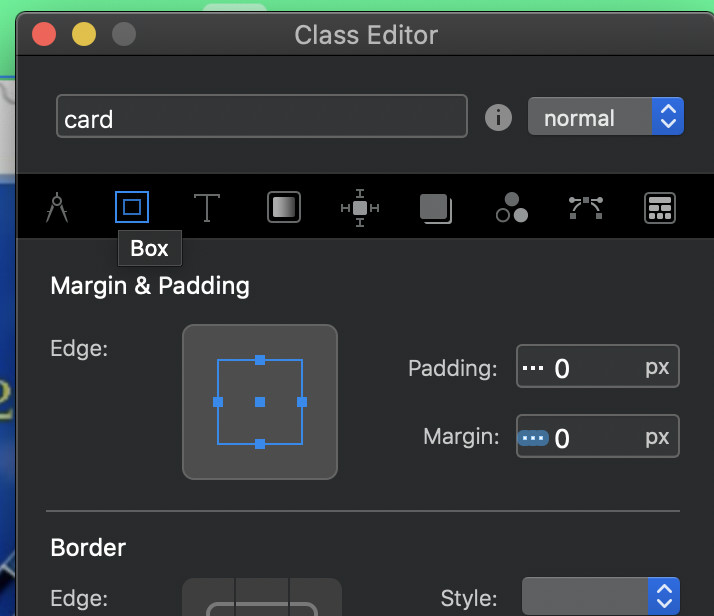
I set a blocs background to a color. Set the background of the .card-body (which contains an image) to transparent, but when previewing in blocs or the browser, I get a padding around the image, and the background is white. When I change the background of the .card-body to something different, it shows the set color.
Well yes, that’s the same as just setting the same color I use on the bloc to the class .card-body. I’m still curious why setting the card background to transparent does NOT show the underlying color of the bloc.
Then there might be something wrong with my setup. I tried it, and it does not work for me. Inspecting the code I can see, that the card-body class has a background color of #FAFAFA applied. I have, however, setup that color as a body-class so it gets applied as a general background color. Removing that class doesn’t change a thing .
If I uncheck the background color from the card-body class in the inspector, the card’s background becomes immediately transparent. I really don’t get why it does not work for me.
Setting a separate class to the card to change the background works in a new project, so it must be my settings somehow. Here’s the live site (WIP though):
Ok, no idea what’s causing this, but I removed and re-added that card, and it seemed to work. After adding an image, the created class (card-bg) to make the background transparent, switched to white … on it’s own. I got this sorted now. Darn glitches. @Norm might want to take a look at that.
Am I wrong in thinking, that this should be achieved by setting the card-body class (BS4 class) to transparent?
EDIT: I just noticed the the card-body had set the background to white also. Setting it to transparent worked this time. I have no idea whatsoever, why it set itself to white after I set it to transparent.
I guess you could, but if that’s a universal class used in BS4, it may well get applied to all cards in the project. If that’s what you want, then that could be the way to go.
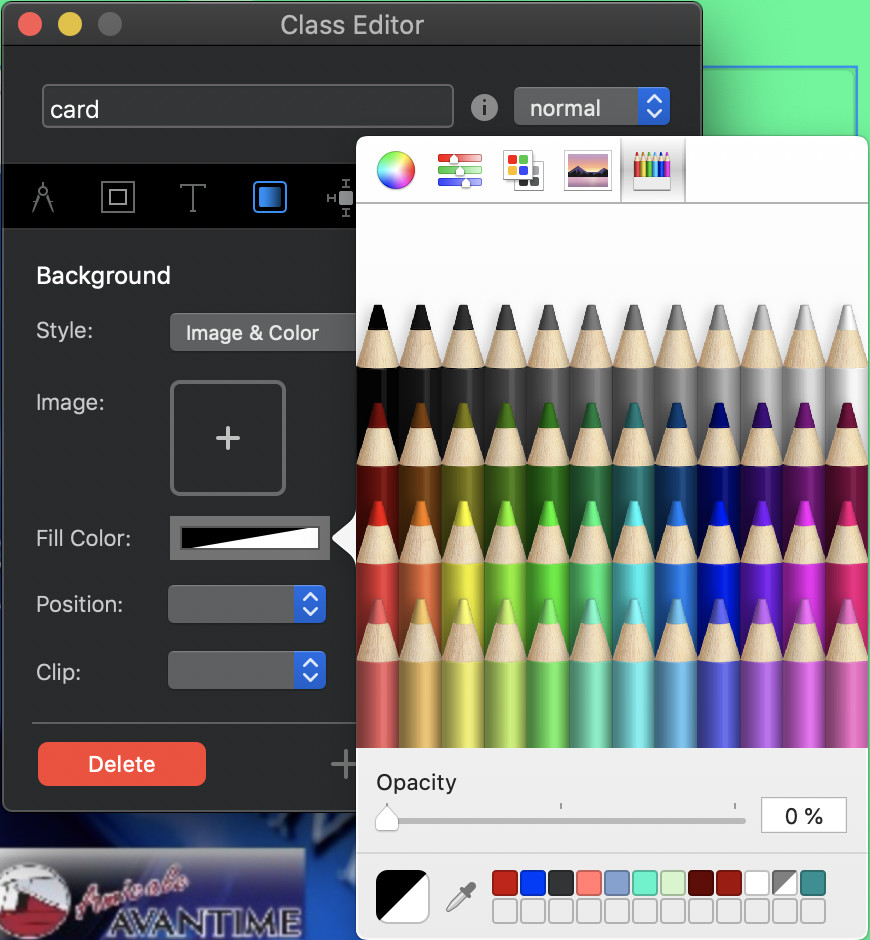
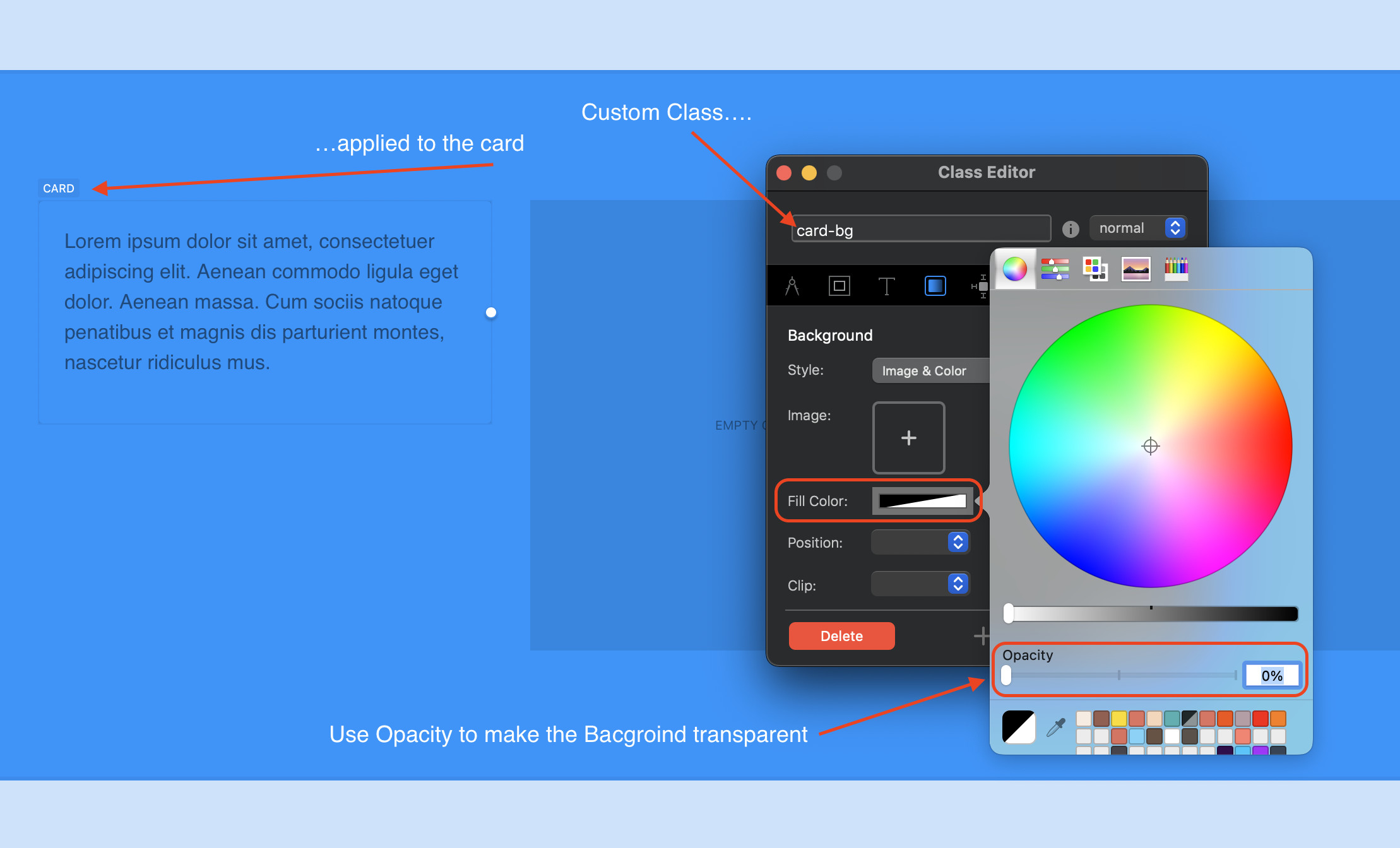
The issue of the actual colour used should not be a problem. Basically, you can select any colour you like as the Background. What is important is that you set the opacity to 0%.
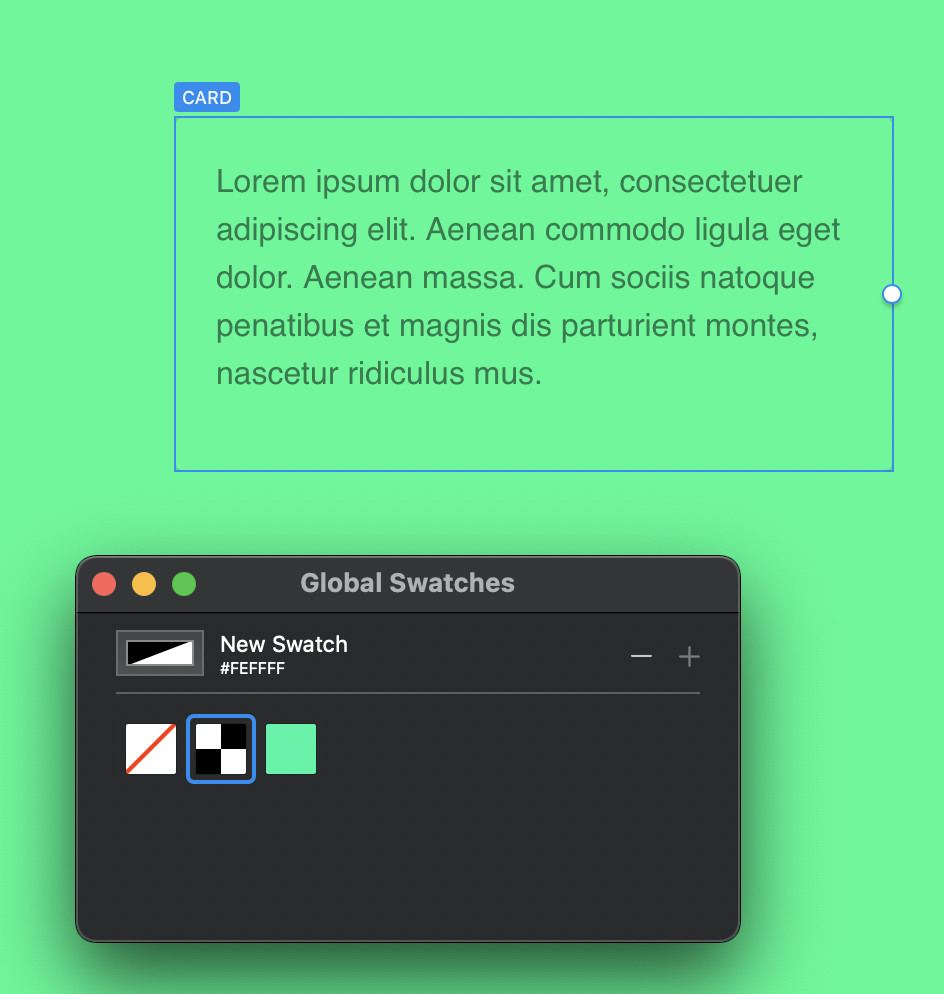
I think the problem you’re having is that you may be setting the hex code for transparent (ffffff00). Blocs is most likely stripping the last two alpha channel digits from the code, leaving you with just plain white. Just add any colour to the background via a custom class and use the opacity tool. Alternatively, add a swatch to your global swatches. Pick any colour and change the opacity, The swatch will look like this:
You can now select that swatch anywhere you want an object to be transparent.
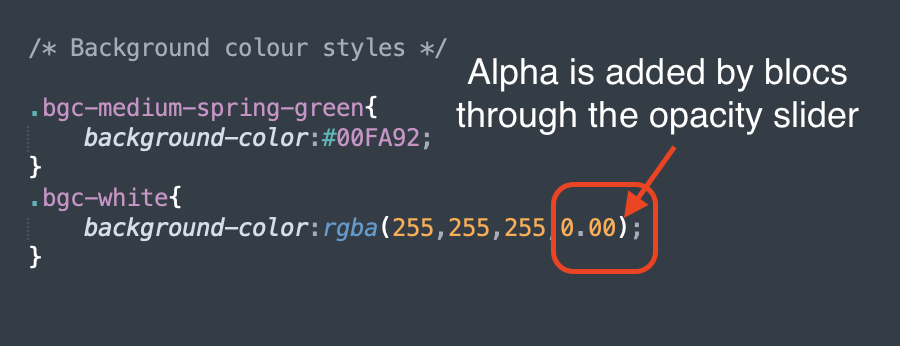
I think what is happening is that blocs will accept only a standard colour code within the interface and will add the alpha information when you adjust the opacity slider. Here is the code (RGBA) output by blocs for the card background in my example.
It does. Check the post above: It works in exactly the same way - its just that you are setting the transparent colour in a class instead of in the global swatches.
What I meant was that I wish clicking the color in the class editor would open the color palette
Right now you need to copy the hex code from the color palette, which, when you right click a color to copy the hex code, automatically applies that color as text or background color to the selected element like a bloc.
@pumpkin Ok, I understand your wish list now. The thing about custom classes is that they allow for styling elements (including background colours) that cannot be applied using the properties panel. If you create a swatch in the global swatch, the colour can be set directly on the element and is available to you everywhere. This leaves your custom classes free for changing other things such as dimensions, positions etc. If you want to set a different colour specifically for one element (not a global colour), you would set it up in a custom class. There would be no great advantage to having a custom class that replicates a colour from the global swatch - you can just as easily apply the colour, directly in the properties panel.