@johnandrew Is that what you are using for the header on that site? Also how did you get to be a slider?
@pixelarte Yes, I’m using Card Designer.
From my previous post you can see that I changed the “Max Width” to “Full Width” in the Presets & Dimensions section. Then here you can see more images can be added in the Images section.
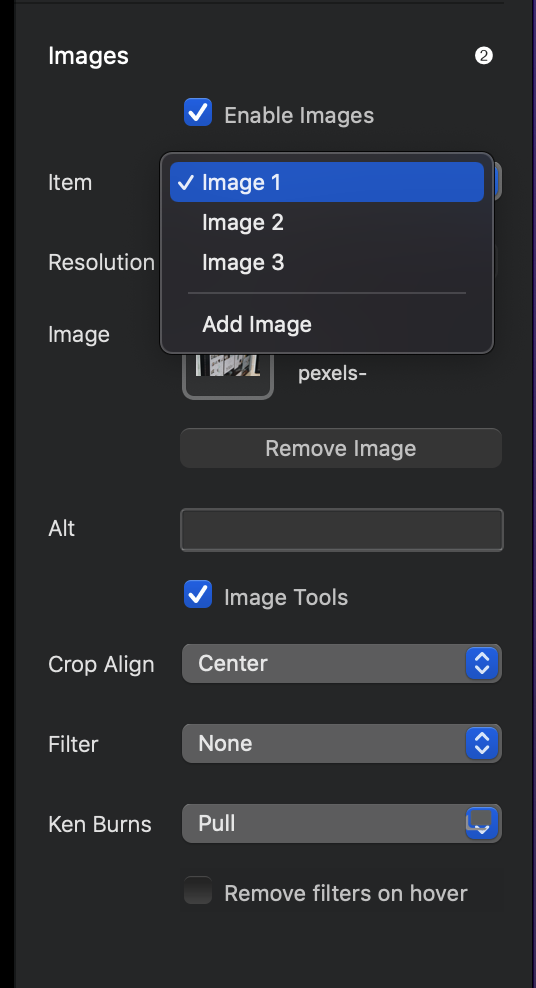
Thanks I just got it to work now. My only disappointment is that you can’t have anything other than a text overlay (it would be perfect if you could overlay an svg logo for example) and that the 3 heights are quite limiting - hopefully this is something @Whittfield can improve.
2 Likes
adding an image/SVG would be a huge thing - I would like this too!
1 Like
Like @chicuelo stated just build what you want in Blocs and use tab anything to control the slider. I used images for my blog (not background images) and then added my logo and text under the image in its own column. Then use negative margin and padding to place the column over the image.
Here’s my blog header as an example.
https://itsmytimephotography.com
casey
1 Like
@casey1823 Thanks but in this instance I was referring to Card Designer. I do like the way you have done the hero slider by the way - I do wish there were some tutorials for Tab Anything showing how examples like yours were done.
Now you have the examples. The possibilities are up to your creativity and skills. If you can create a regular bloc you can create a slider with tab anything and you have no limitations in size, height distribution or slides.
3 Likes
@pixelarte You can do the same thing using Card Designer without some of the limitations in card designer. The biggest limitation is the card height at 540 as chicuelo stated.
casey
@casey1823 Thanks Casey. I have managed to achieve what I want with Card Designer apart from the height limitations. I have also managed to produce something ok with Tab Anything.
Is there anyway of controlling the visibility of the TA nav other than using the Visibility breakpoints?
Nice to see you’re a Fuji camera user by the way I use an XT2 and an X100v
You could hide the TA menu and create your own with icons, text, images or mix whatever you want. You can also have multiple icons controlling a slide or a tab.
In this site: https://www.irenebermejo.com I control the treatments section with the left menu and also with the mega menu scrolling to the section, closing the menu and displaying the proper tab
Thanks @chicuelo I can see how to do it with a button but I like the idea of using icons but haven’t a clue how to do that.
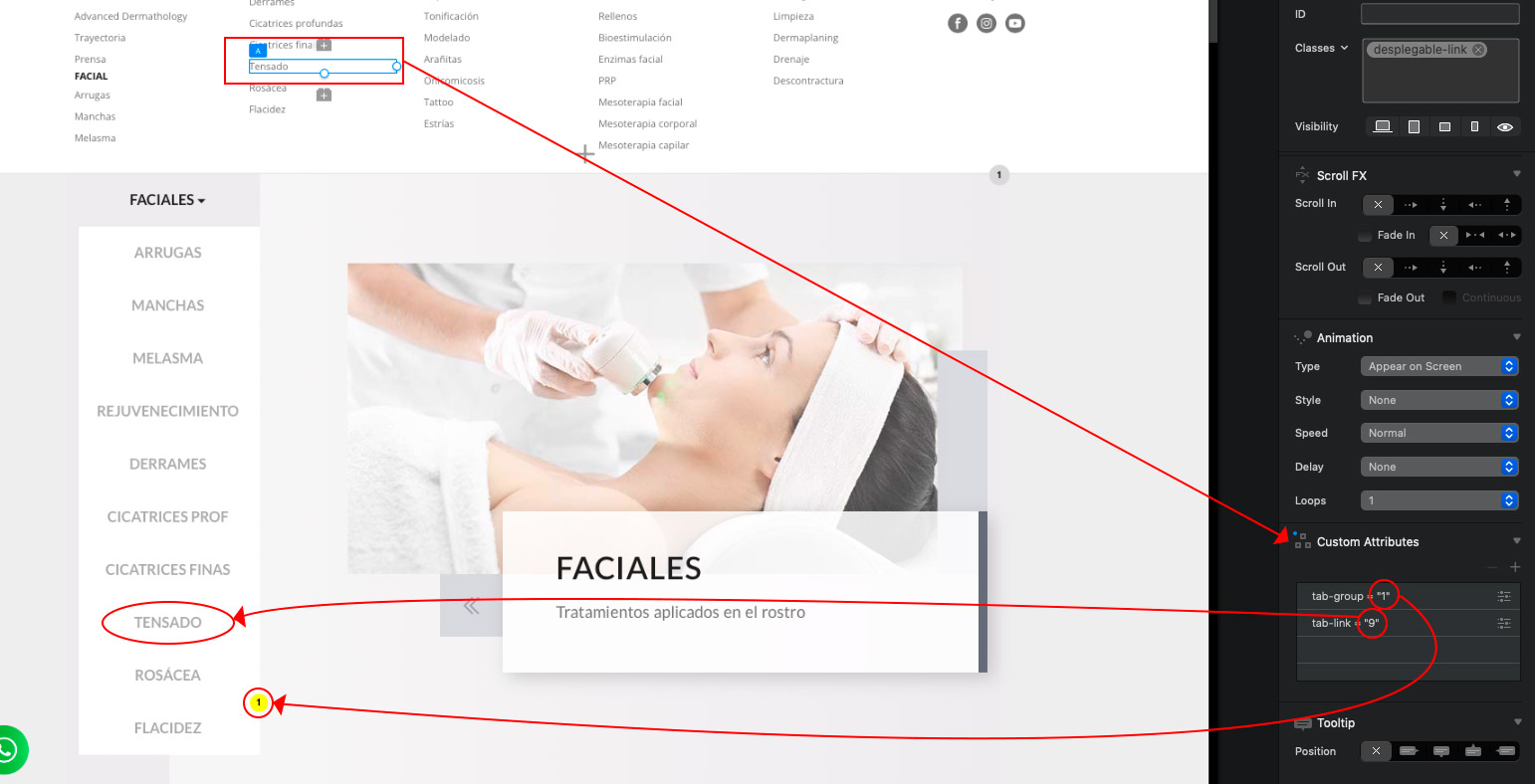
You place the image or icon of your choice that will control the tab you desire and add two “Custom attributes” on the left pannel. You have to add “tab-group=2” and “tab-link=3” with proper numbers.
The group indicates which tab anything index will be triggered (in case you have more than one on the same site) the link indicates which slide will you display.
Here you have an example of a text link inside the mega menu:
1 Like
@chicuelo Thanks for that, very helpful and much appreciated.
I got it to work on buttons and a text link but can’t get it to work when I apply the custom attributes to an icon.
You could achieve this by 2 ways:
Inside TA using the image type instead of text, bullets or bars and placing your own images/icons
Or create a regular button outside TA and place the icon you desire as a background with styles (this will work in mobile too)
@chicuelo Thanks that’s perfect.
1 Like