I guys, I’d like to have a little line under menu items when thy are active to indicate te page I’m in.
yo can see what I’d like to do in the image attached.
can anyone help me?
tx

This is from the Blocs Bytes Quick Tips video on Youtube.
Casey

ok, but I’d like to add a line like the one you can see in the image I attached in the main post.
is it possible?
Following the instructions in the video posted by @casey1823, you can add an underline quite easily by selecting the bottom border in the class manager. Set it to say 1px and set all the other borders to 0. This will place a bottom border under the active link on your webpages. However, it will be a full width bottom border - not a short one.
You and style it similar to the one you shown using the text underline decoration also. @hendon52 option will also work, you can make the width smaller by setting the width option to what you want. Maybe 30%?
Casey
You are probably right, styling it just using a class you can reduce the width but aligning it to the center does not work. I was suprised that even using left/right auto margins has no effect.
Casey
Another option is to create a png image of the underline. I made one that was 50px wide - it looks like this

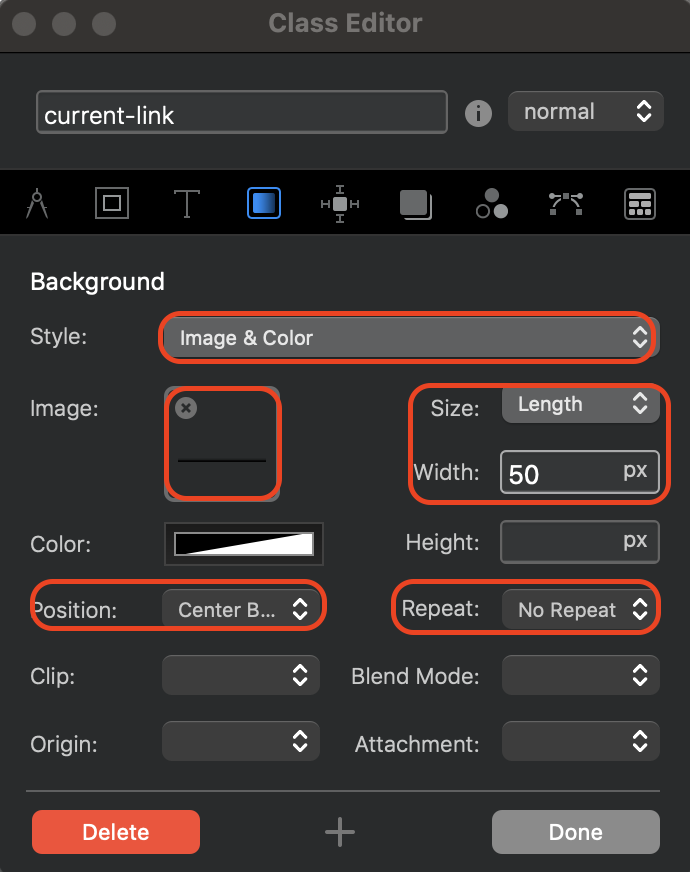
I then created an active link class named current-link and set the image as a background image. The width was set to 50px, no repeat and positioned at centre bottom, here are the settings in the class manager
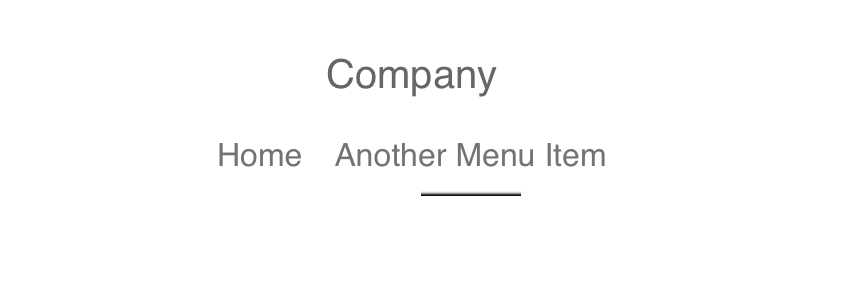
The end result is something like this:
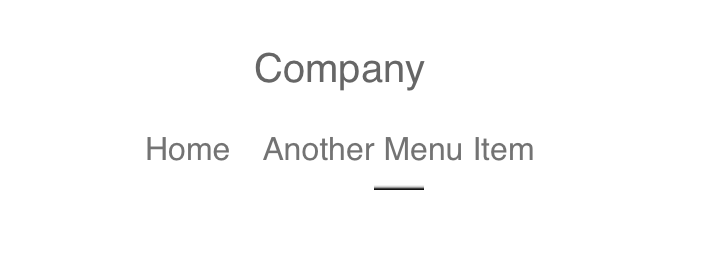
If you need the line to be shorter, you can set the length to a smaller pixel setting. However, please note that this will reduce the thickness of the line so you may also need to adjust the height setting to maintain the line thickness. I did this by creating the original PNG image at 20px height and 50px width. The line was added at the bottom of the canvas. When I use as a background image in the class manager, I can set the height to 20px and the width to whatever I like. This maintains the line thickness regardless of length . Here is a screenshot of the same menu set at a width of 25px
1 Like
I would use Pseudo Elements, you can create it all in the class editor.

-
Make sure the class you use for active menu items is set to position: relative.
-
Make a Pseudo Element using your active class. In my example, I used
.active, so its.active::before -
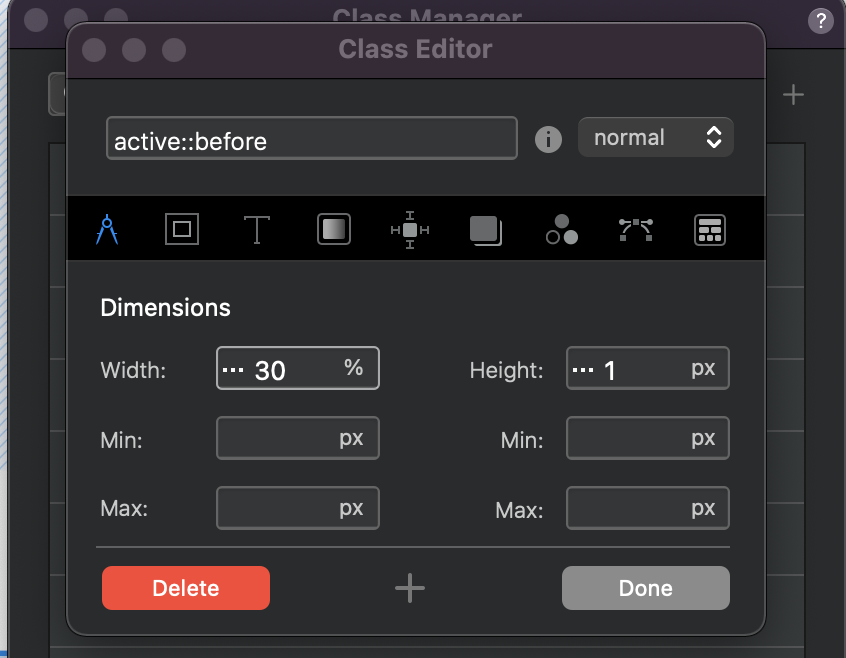
Copy the following settings, adjust to suit your design. (instead of a % width you can set a px, what ever effect you want. You can even animate the line, but you have to code the CSS for that).
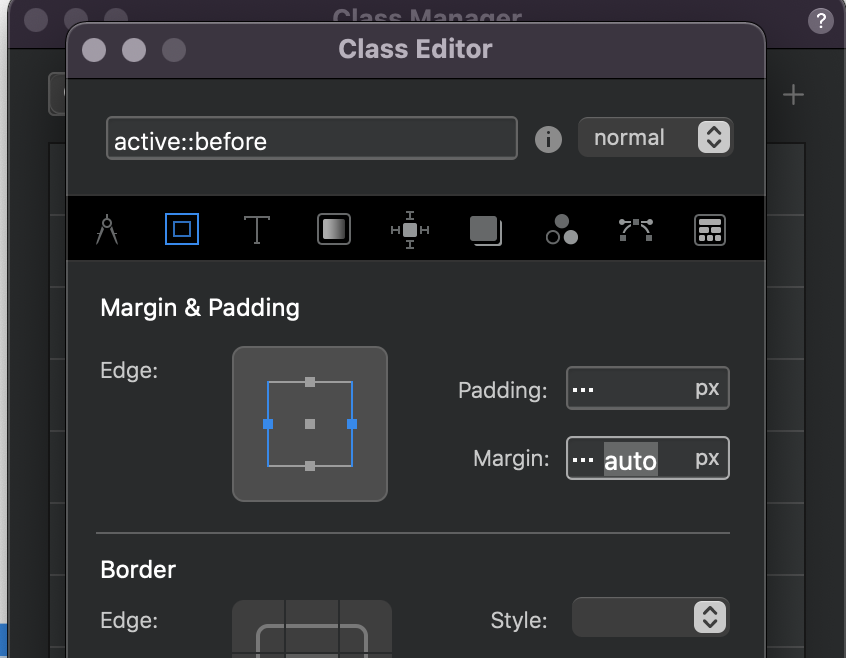

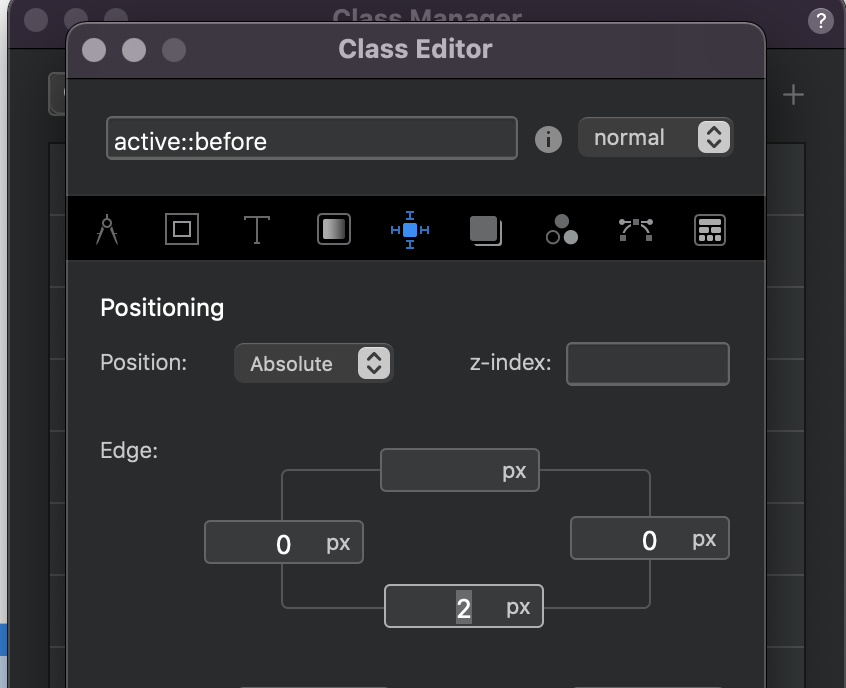
3 Likes
@PeteSharp Just tried your solution but it doesn’t centre the line. I used the setting exactly as shown in the screenshots including the absolute positioning. I notice that in your explanation you say the position should be relative, however, using relative doesn’t show the line at all.
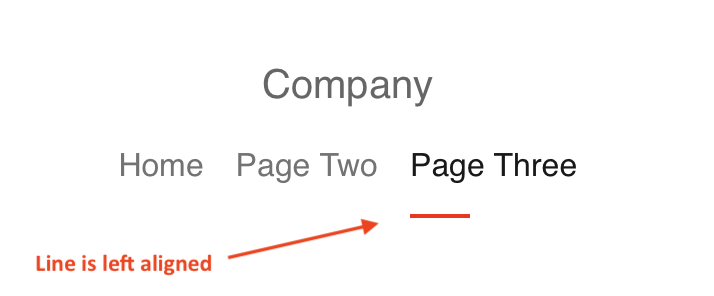
@hendon52 make sure (what ever class you are using…)
.active is set to relative
.active::before is set to absolute.
(this then is absolute positioning relative to the active menu item)
Worked fine for me, as attached. I have used this technique many times.
Is there a way to make sure the underline spread across the entire word/links ?
Using the Pseudo Elements, yes - remove the width value. Because we have set position left and right 0 it will fill the width. (Note- doing it this way will include the entire width of the nav button, what ever padding you are using you can apply to the left and right positions to match the text.)
Keep the value for width if you plan on animating the line, which is cool for use with ScrollSpy.
So I have to create 2 classes - one named .active and one named .active::before. I then apply the settings to the .active::before class and set the position relative to the .active class. Then, in the blocs settings I set .active as the class for the active link. If that is the case, It doesn’t work for me. Attached is my blocs project file so you can see what’s happening.
menuTest.bloc (4.1 MB)
1 Like
@hendon52, I looked at your test project you are missing…
position edge left: 0 and right: 0
Not setting a value, doesn’t make the value 0, it just means the style doesn’t exist.
2 Likes
Thanks for looking at the file. I now understand the importance of the 0’s
1 Like
No worries @hendon52, those position values can be very important, especially for absolute positioning.
It all depends on the use case, setting the right and left to 0, allows you to define a smaller length for the line and centre it.
One day, I hope to under this kind of code language. 
I think anyone can pick it up. I set time aside almost every week for up skilling. Always learning… mainly getting rid of bad habits and finding smarter ways to do things.
3 Likes
tx a lot, this method, goes!